
How to Share Location on iPhone With the Right People
- 11 Views
- johansan great
- October 10, 2026
- Reviews
To share your location on an iPhone, use Find My for ongoing sharing, Messages for a convenient conversation-based option, or Maps to send a specific place. Choose the method according to whether someone needs to follow your movement or simply find a meeting point. A fixed map pin and live location sharing are different tools.
Location sharing can help friends meet, coordinate a journey, or check that someone has arrived. It also reveals information about where you are and potentially where you spend time. This guide explains the practical choices, the settings that support them, and how to stop sharing when the purpose is finished.
Decide What You Need to Share
If you are telling someone where a restaurant is, send the restaurant’s map location. If you want them to see where you are during a walk or trip, temporary live sharing may be more useful. Avoid granting ongoing access when one clear meeting point would solve the problem.
Think about the audience and duration before opening the app. A close family member, a new acquaintance, and a delivery driver do not necessarily need the same information. Share only what fits the situation and confirm the recipient before sending.
Explain the method in your message. Saying This is the meeting entrance is clearer than sending a pin with no context. Saying I will share for the next hour gives the other person a reasonable expectation about how long the information remains available.
Check the Required Settings
Open Settings and inspect Privacy and Security, then Location Services. The relevant services need permission to use location. If location is disabled or restricted, sharing may fail or show incomplete information. Review permissions deliberately rather than turning on every option indiscriminately.
For Find My, check the settings associated with your Apple Account and the sharing feature. If you use more than one Apple device, confirm which device supplies your location. Otherwise, someone may see the position of a device left at home instead of the phone you are carrying.
Make sure the phone has a working connection when you need updates to reach another person. GPS and data connectivity serve different roles. A device can estimate its position but still be unable to send a current update through the service.
Share Through Find My
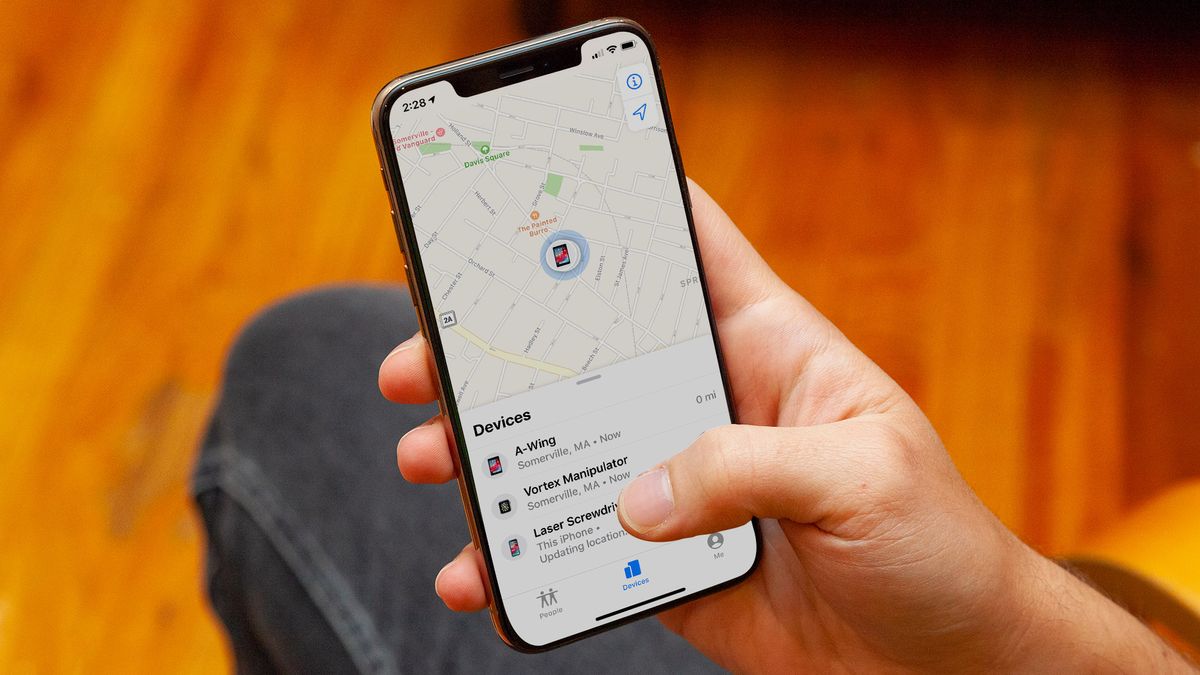
Open Find My and choose the People area. Use the add or share option, enter the intended contact, and confirm the recipient. Choose a duration from the available options, such as a limited period or ongoing sharing, then send.
Check that the person appears in the sharing list. If their contact has several addresses or numbers, verify that you used the one connected to the intended person. A similar name is not enough confirmation when location information is involved.
Use a short duration for a short task. If you only need help meeting after an event, indefinite sharing adds an unnecessary ongoing choice. You can start a new limited share later if the need returns.
Use Messages When You Are Already Talking
In a compatible conversation, open the available location controls and choose the option that fits your goal. Messages may offer a way to send a current location or share ongoing location, depending on the devices and software involved. Read the wording before confirming.
A current-location message is a snapshot. It helps someone find where you were when you sent it, but it does not necessarily follow your movement afterward. If you leave the place, send an update rather than assuming the original pin moves with you.
Live sharing can be convenient inside an existing conversation, but check the audience carefully, especially in a group. Do not share private movement with a larger thread merely because it is the most recent conversation on screen.
Send a Place With Maps
Open Maps and find the place you want to share. Confirm the address and, where relevant, the entrance or meeting area. Use the share control to send the place through an appropriate message or app. This method is useful even when you do not want ongoing tracking.
Large venues can have several entrances. A general place pin may lead someone to the wrong side of a stadium, hospital, or shopping center. Add a short description such as the west entrance beside the café, and make sure the pin supports that instruction.
For a location without a searchable address, drop a pin carefully and inspect the surroundings before sending it. Map estimates can be imperfect. A clear landmark or photo of a public meeting point can help, provided it does not reveal unnecessary private information.
Consider Check In for a Journey
Where supported, Messages includes Check In features that help a contact know about a planned arrival or timed activity. This is a different purpose from sending a fixed place or continuously exposing your location. Review the setup and information-sharing choices before using it.
Choose a contact who expects the check-in and understands what to do if they receive an alert. Do not rely on a feature as the only safety plan for a difficult journey. Keep ordinary travel arrangements and emergency communication available.
Eligibility and behavior can vary with software and circumstances. Use the on-screen explanation for your version. If the feature is unavailable, agree on a simple message or call on arrival rather than searching for an unofficial workaround.
Stop Sharing When You Are Finished
Open the person in Find My and use the stop-sharing control when you no longer want ongoing access. You can also review broader sharing settings when you want to end all location sharing. Read the choice carefully so you do not change more than intended.
Check the list afterward to confirm the arrangement matches your preference. A limited share may expire automatically, but it is still useful to review recurring or indefinite sharing occasionally. Your contacts and circumstances can change over time.
Do not promise yourself that stopping will be invisible to the other person. The person may notice that your location is no longer available, regardless of whether a specific notification appears. Make privacy decisions based on your needs and safety rather than assumptions about secrecy.
Troubleshoot an Unavailable Location
If someone cannot see your location, check the correct device, permissions, connection, and sharing status. Make sure the intended contact actually received the share. A typo or outdated contact detail can look like a technical problem.
Look at the timestamp or status of the location. A last-known position is not the same as a live update. A powered-off phone, depleted battery, or poor connectivity can make information stale. Tell the other person directly if you know updates will be unavailable.
Restarting the phone or updating software may help an unexpected app issue, but avoid changing every privacy setting at once. Test the specific sharing method with a trusted contact. If it still fails, use official support guidance and a temporary alternative.
Protect Privacy During Routine Sharing
Review who has ongoing access in the People list. Remove arrangements that no longer serve a purpose. If you share with family, discuss expectations so the feature supports coordination rather than creating pressure to justify every movement.
Use location permissions appropriate to individual apps. A shopping or social app may not need the same access as navigation. Little Lioness’s article on basic technology tips is related reading for reviewing everyday digital choices.
Do not publish a screenshot showing your home position or live travel route without checking what it reveals. A location image can expose patterns even when no address is typed. Private sharing and public posting have very different audiences.
Choose a Suitable Option for Non-iPhone Contacts
A Maps link or a fixed pin can be easier for someone who does not use Apple’s sharing features. Test that the recipient can open the information and understands what the pin represents. An incompatible live-sharing invitation may not meet your practical goal.
Some cross-platform messaging or map apps provide their own location features. Review their permissions, audience, and duration separately. Do not assume that turning off Find My sharing automatically ends sharing in another app.
Use an ordinary written address when that is the clearest solution. Technology is helpful, but a precise meeting instruction can be more dependable than an unfamiliar app link. Include a public landmark when directions are ambiguous.
A Practical Meeting Example
Suppose you are meeting a friend at a large station. Send a Maps pin for the agreed entrance and a message naming the entrance. If you are walking toward each other and need help locating one another, start a short live share with that friend only.
Once you meet, let the share expire or stop it. This uses two different tools for two different tasks: the fixed pin establishes the destination, and the live share helps with the final approach. Neither needs to remain active indefinitely.
For more everyday iPhone use, Little Lioness’s guide to Safari on iPhone and iPad is a related companion. Built-in tools are easier to use confidently when you understand the purpose of each control.
When Sharing Feels Uncomfortable
You can decline a request or choose a shorter duration. Location access should serve a clear purpose and be something you can review. If another person pressures you to maintain tracking, consider your safety and seek support appropriate to the situation.
Apple’s personal safety tools can help review account access and sharing arrangements. Use official guidance and a safe setting if you are worried about unwanted monitoring. A sudden change may be noticed, so think through the circumstances rather than following a generic tip blindly.
Frequently Asked Questions
Does Sending a Pin Share My Movement
Not necessarily. A fixed current-location or place pin generally identifies a position at the time of sending. Ongoing sharing is a separate feature. Read the control’s description and tell the recipient whether the information is a snapshot or expected to update.
Can I Share for Only a Short Time
Find My and compatible Messages workflows can offer duration choices. Use the options shown on your device and confirm the selected period. If you use another app, inspect its own controls because its timing and expiration behavior may differ.
Does Turning Off the Phone Hide Where I Was
A service may still show a last-known position or other status. Do not treat power-off as a guaranteed way to erase previously shared location information. Review sharing settings and official guidance for the feature you are using.
Share With a Clear Purpose
Knowing how to share location on iPhone means choosing between a fixed place, a current snapshot, and ongoing updates. Verify the recipient, select a suitable duration, and review access afterward. The right amount of information is the amount that helps the task.