
How to Reset AirPods and Reconnect Them Correctly
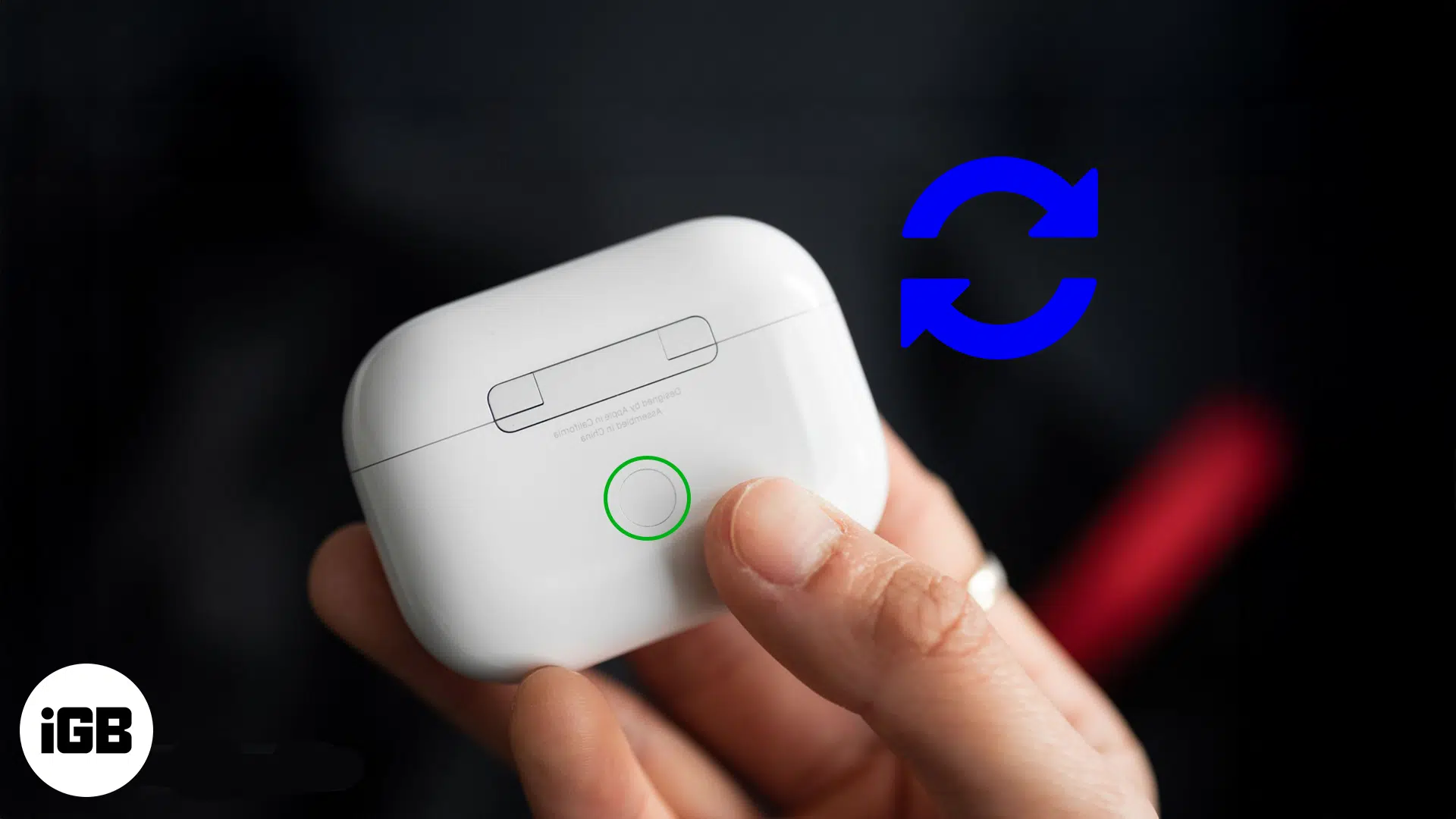
To reset AirPods, first identify the model because different cases use different controls. AirPods 1, 2, and 3 and AirPods Pro 1 and 2 use a rear setup button. AirPods 4, AirPods 5, and AirPods Pro 3 use a timed tapping sequence on the front of the case. AirPods Max have a separate procedure and should not be treated like earbuds in a charging case.
A reset can help with some pairing or connection problems, but it is not a repair for every charging, audio, or hardware issue. Start with the symptom, check the model, and use the appropriate instructions. This guide explains preparation, the reset methods, reconnection, and what to do if the problem remains.
Identify Your AirPods Before Starting
Check the model information in the device settings or use Apple’s identification guidance. The case shape alone can be misleading, especially when models look similar. A replacement case or one borrowed from another person can add further confusion.
Look for the rear setup button if your model uses one. Newer front-control cases do not follow the same hold-the-button procedure. Do not press random areas or insert objects into openings in search of a hidden reset switch.
Write down the model if you will need to contact support. That information helps explain which procedure you tried and what light behavior appeared. A report saying AirPods reset did not work is much less useful without the generation and case type.
Check Charging and Fit First
Place both earbuds properly in the case and confirm that they sit in their intended positions. A charging contact problem can prevent one earbud from participating in a normal reset or reconnection. Inspect the case and earbuds for visible debris.
Clean only with methods suitable for the product. Do not scrape contacts with sharp metal, flood the case with liquid, or push debris deeper into an opening. Follow Apple’s cleaning guidance when needed. Let components dry appropriately before charging if they became damp.
Charge the case and earbuds using compatible equipment. A depleted case can make light signals misleading or absent. If charging appears unreliable with a known working cable or charger, a reset may not address the underlying fault.
Understand Reset and Forget This Device
Forget This Device removes the Bluetooth pairing record from the selected device. A reset changes the AirPods’ connection state so you can set them up again. These actions are related in the procedure but are not identical.
Before forgetting, make sure you can reconnect the earbuds and that you are using the intended phone or tablet. If you have several similar device names in Bluetooth settings, inspect the correct entry. Renaming devices clearly can help prevent mistakes later.
A reset is also different from removing the AirPods from an Apple Account for ownership transfer. Do not assume a Bluetooth reset clears every account association. If you are giving them away, follow the separate Find My and ownership instructions appropriate to the model.
Reset Models With the Rear Setup Button
For AirPods 1, 2, or 3 and AirPods Pro 1 or 2, put both earbuds in the case, close the lid, and wait thirty seconds. On the paired iPhone or iPad, open Settings and Bluetooth. If the AirPods appear, open their information control and choose Forget This Device, then confirm.
Open the case lid. Hold the rear setup button for about fifteen seconds until the status light flashes amber and then white. Use the light sequence rather than pressing for an arbitrary long period. Keep the case stable while performing the step.
With the earbuds still in the open case, bring them near the device and follow the setup prompt. If the AirPods were not listed in Bluetooth before the reset, you can continue with the case procedure rather than inventing an entry to remove.
Reset Front-Control Case Models
For AirPods 4, AirPods 5, or AirPods Pro 3, place the earbuds in the case, close it, and wait thirty seconds. Forget the Bluetooth entry on the paired iPhone or iPad if it is present, then open the case lid.
Double-tap the front while the status light is on. Double-tap again when the light flashes white, then double-tap a third time when it flashes faster. The reset completes when the light flashes amber and then white. Timing matters, so watch the light between the three actions.
Bring the open case near your device and follow the reconnection instructions. Do not substitute the older rear-button procedure for a case that uses front taps. If the sequence fails, check power and repeat the official model-specific guidance carefully rather than tapping continuously.
Reconnect and Test One Function at a Time
After pairing, play a familiar piece of audio at a comfortable volume. Check the left and right earbuds separately if the original problem affected one side. Then test the microphone with an appropriate recording or call setup.
Select the AirPods as the audio output if sound continues through the phone speaker. Pairing successfully does not always mean an app immediately changes its output. Check the app and system controls before assuming that the reset failed.
For general device management, Little Lioness’s article on basic technology tips is related reading. Clear device names and organized settings make accessory troubleshooting easier.
If the Status Light Does Not Behave as Expected
Check that the case has power, the lid is open at the required stage, and both earbuds are seated correctly. Use the procedure for the exact model. A missing rear button or unfamiliar light pattern is a reason to confirm identification rather than force an older method.
Close the case briefly and try the appropriate sequence again after checking the official instructions. If the light remains absent, try known compatible charging equipment. Do not repeatedly run a reset on a case that appears unable to charge.
Keep a note of the actual sequence you see. Amber without white, no light, or an immediate setup prompt are different observations. If support is needed, describe the behavior rather than saying the color was wrong without further detail.
Investigate One Earbud Not Working
Check whether both earbuds show charge information and sit correctly in the case. Inspect audio balance and accessibility settings on the connected device. A shifted balance control can make one side seem faulty even when both earbuds are paired.
Test with another suitable app or device when practical. If the same earbud remains silent everywhere, hardware or charging deserves attention. If the problem occurs only in one app, focus on that app’s settings and update status.
Avoid turning the volume very high to compensate for a quiet earbud. Excessive volume can create a hearing risk without solving the cause. Clean appropriately, inspect fit, and seek service if sound remains unusually reduced.
Investigate Repeated Disconnections
Check whether the AirPods are switching between nearby devices associated with your setup. Automatic switching can be useful, but it may feel like a disconnection when audio moves unexpectedly. Review the relevant connection preferences for the devices you use.
Test in a different location if wireless interference is plausible. A busy environment can produce a different experience from a quiet room. Keep the phone within a reasonable range and note whether movement or a particular device triggers the interruption.
Update the connected device and follow Apple’s guidance for the AirPods’ software. Do not download an unofficial firmware tool promising a quick repair. A reset is one diagnostic step, not a replacement for supported software and reliable hardware.
Handle Replacement Earbuds or Cases
If you replaced an earbud or case, follow Apple’s specific replacement setup procedure. Compatible model matching matters. A collection of parts that physically fit together does not necessarily form a supported set.
Ask the supplier for exact model information and legitimate service documentation where relevant. If the accessory is secondhand, confirm ownership and account removal. Problems in that area are different from ordinary Bluetooth troubleshooting.
Do not assume another person’s charging case is an appropriate long-term substitute. Use compatible equipment and verify the setup. An attempted reset with mismatched parts can create confusing symptoms that no amount of repetition resolves.
AirPods Max Require Separate Instructions
AirPods Max do not use the charging-case procedures described above. Their restart and factory reset involve controls on the headphones, with model-specific guidance. Consult Apple’s current AirPods Max instructions before performing the operation.
Charge them appropriately and distinguish a restart from a reset that removes settings. Do not improvise based on the earbud guide. If you cannot identify the model or the control behavior, stop and use the official support route.
The general troubleshooting habits still apply: record the symptom, check charging, test another source, and inspect settings. Only the physical reset procedure changes. Treat product families as related devices rather than identical hardware.
Prepare AirPods for Another Owner
A factory reset should not be treated as a substitute for legitimate ownership removal. Review Find My and Apple Account associations using the official transfer guidance. The recipient should not inherit a device still linked in a way that prevents normal use.
Keep serial and purchase information private, but retain records you may need for service. Clean the accessories safely and describe their condition honestly. If a battery or earbud is unreliable, resetting does not erase that issue from the product’s history.
For everyday iPhone use alongside accessories, Little Lioness’s guide to Safari on iPhone and iPad is related reading. Learning individual controls makes it easier to distinguish accessory issues from phone or app behavior.
Frequently Asked Questions
Will Resetting Repair a Weak Battery
No reset restores the physical capacity of a worn battery. It may help a connection or status issue, but persistent short runtime needs further diagnosis. Compare a normal full-charge test and seek service when the hardware condition is the likely cause.
Can I Reset Without the Original Phone
The case procedure can support new pairing, but ownership associations may still need the legitimate account holder’s action. Do not assume access to the case alone resolves account-related restrictions. Follow the appropriate transfer or support process.
How Often Should I Reset AirPods
There is no need for a routine schedule. Reset when a specific troubleshooting situation makes it useful. If you have to repeat the procedure frequently, investigate charging, software, device switching, or hardware instead of treating repeated resets as normal maintenance.
Use the Correct Procedure Once and Test
Knowing how to reset AirPods means matching the control sequence to the model. Check charging, perform the appropriate reset, reconnect, and test the original symptom. If the problem remains, move toward a specific diagnosis rather than repeating the same action indefinitely.