
How to Screen Record on iPhone: The Complete Step-by-Step Guide for All iPhone Models
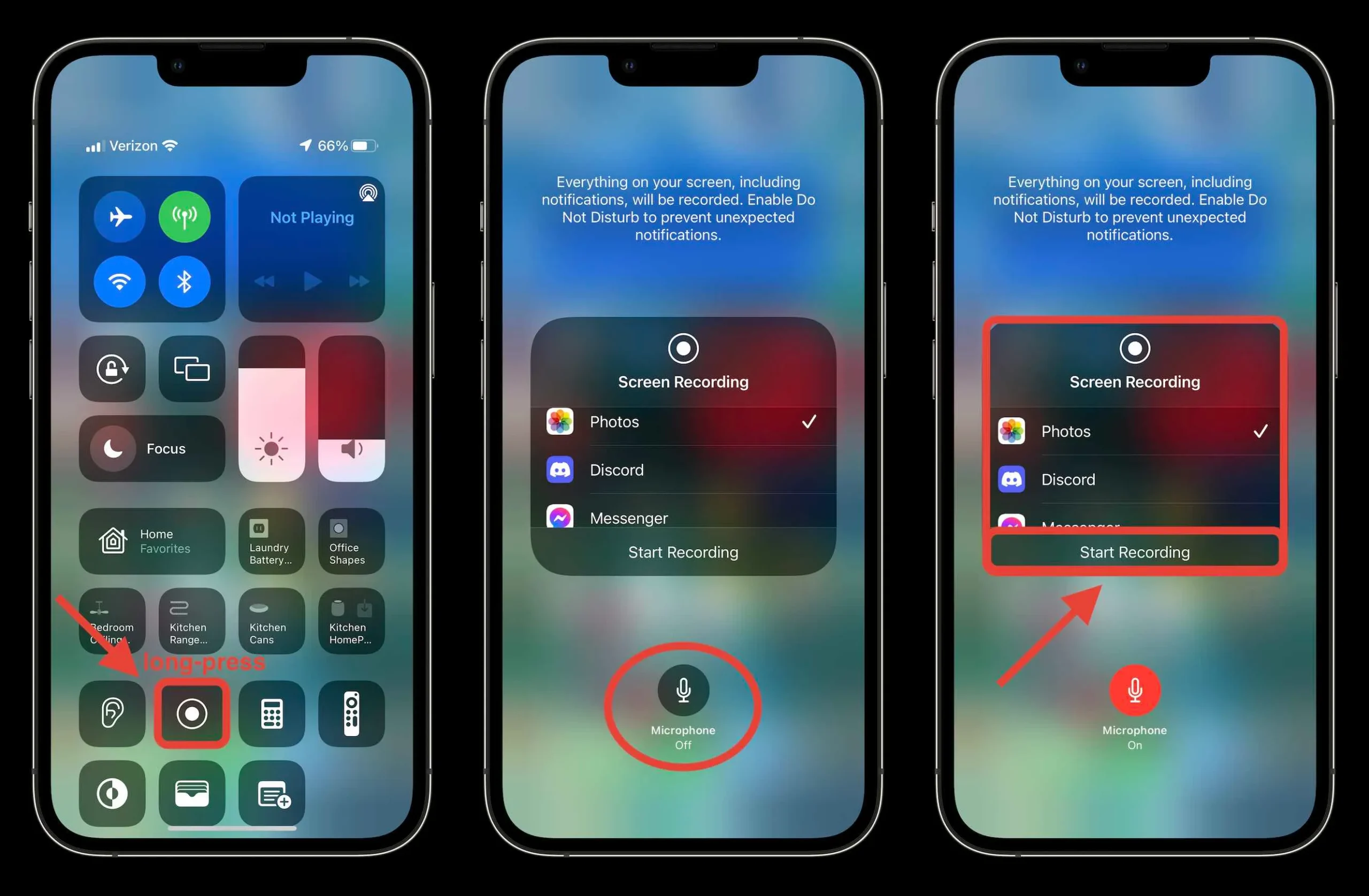
Learning how to screen record on iPhone has become essential in today’s digital world, whether you want to create tutorials, capture gameplay, save video calls, or troubleshoot issues. Apple has built a powerful and easy-to-use screen recording feature directly into iOS, eliminating the need for third-party apps in most cases. This in-depth guide explains how to record screen on iPhone, how to enable audio, where recordings are saved, and how the process works across different models, including newer and older devices.
What Is Screen Recording on iPhone and Why It Matters
Screen recording allows you to capture everything happening on your iPhone display in real time. When you understand how to record your screen on iPhone, you can create professional-looking videos, explain steps visually, or keep a record of important activities. Apple’s native screen recorder supports internal audio, microphone input, and works smoothly across apps, making it ideal for both casual users and professionals.
Recent:Traitors Season 4 Week 3 Recap: A Shocking Betrayal Changes Everything in the Castle
How to Get Screen Record on iPhone Using Control Center
Before learning how to screen record on an iPhone, you must ensure the screen recording feature is available in Control Center. Many users search for how to get screen record on iPhone because it may not appear by default. To enable it, open Settings, go to Control Center, and add Screen Recording to the included controls. This simple step ensures you can quickly access recording whenever needed.
How to Add Screen Record on iPhone for Quick Access
If you are wondering how to add screen record on iPhone, the process is straightforward. In Settings, tap Control Center, then tap the plus icon next to Screen Recording. Once added, you can swipe down from the top-right corner of your screen to see the recording icon. This setup step is crucial for anyone who frequently needs to capture their screen.
Recent: Understanding Photos of Breast After Radiation Therapy
How to Turn On Screen Record on iPhone Step by Step
Understanding how to turn on screen record on iPhone is essential for first-time users. Swipe down to open Control Center, tap the Screen Record icon, and wait for the three-second countdown. Once recording starts, the status bar turns red, indicating your screen is being captured. This method applies across most iPhone models and iOS versions.
How to Set Up Screen Record on iPhone for Best Results
Knowing how to set up screen record on iPhone properly ensures high-quality recordings. Before starting, close unnecessary apps, enable Do Not Disturb to avoid notifications, and ensure sufficient storage. These steps help prevent interruptions and ensure smooth video capture, especially for longer recordings.
Recent:Awkward JCPenney Photos: Why These Portraits Became an Internet Phenomenon
How to Screen Record with Sound on iPhone Using Microphone
Many users ask how to screen record with sound on iPhone because audio is not always enabled by default. To record audio, long-press the Screen Record icon in Control Center and tap the Microphone button to turn it on. This method allows you to capture voice narration, external sounds, or explanations while recording your screen.
How to Screen Record with Audio on iPhone Including Internal Sound
If you want to know how to screen record with audio on iPhone, it’s important to understand the difference between internal audio and microphone audio. Internal app sounds are usually recorded automatically, while voice narration requires enabling the microphone. This combination is perfect for tutorials, walkthroughs, and demonstrations.
Recent: Joey Dallas Photos: Visual Media and Public Image
How to Screen Record on iPhone with Sound for Tutorials and Gameplay
When learning how to screen record on iPhone with sound, gamers and educators benefit the most. Ensure the app volume is turned up, the microphone is enabled if needed, and notifications are silenced. This setup ensures clear, professional-quality recordings suitable for sharing or uploading.
How to Record My Screen on iPhone for Apps and Browsing
If you’re searching for how to record my screen on iPhone, the built-in recorder works seamlessly across most apps, including Safari, social media, and productivity tools. Simply activate screen recording and navigate your device normally. Everything visible on the screen will be captured until you stop recording.
How to Find Screen Record on iPhone After Recording
Many users complete a recording and then wonder how to find screen record on iPhone. All screen recordings are automatically saved in the Photos app under Videos. From there, you can edit, trim, share, or delete recordings as needed.
Recent:Funny Venmo Captions: A Complete Guide to Making Payments Way More Entertaining
How to Put Screen Record on iPhone Photos and Share Easily
If you are curious about how to put screen record on iPhone storage, the process is automatic. Once you stop recording, the video appears in Photos, making it easy to share via messaging apps, email, or cloud storage. You can also export recordings to external platforms without additional tools.
How to Enable Screen Record on iPhone for New Users
Understanding how to enable screen record on iPhone is especially helpful for new users or those switching from Android. By adding the feature to Control Center and familiarizing yourself with the controls, you unlock a powerful tool that enhances productivity and creativity.
How to Record Your Screen on iPhone During FaceTime Calls
A common question is how to screen record FaceTime with sound on iPhone. While screen recording works during FaceTime, audio recording may be restricted depending on privacy settings and iOS version. Always inform participants before recording, and test audio settings beforehand to ensure compliance with local laws.
Recent: Does Post Malone Have a Wife and Kids? A Deep Dive Into His Love Life, Family, and Fatherhood
How to Screen Record Netflix on iPhone and DRM Limitations
Many users look for how to screen record Netflix on iPhone, but it’s important to understand content protection. Most streaming apps block screen recording, resulting in a black screen or muted audio. This limitation is due to digital rights management and cannot be bypassed using the native screen recorder.
How to Screen Record on iPhone SE Models
If you’re wondering how to screen record on iPhone SE, the process is identical to other iPhones running modern iOS versions. Add Screen Recording to Control Center, swipe down, and tap the icon. Despite its compact size, the iPhone SE fully supports screen recording features.
How to Screen Record on iPhone 11 Without Third-Party Apps
Users searching how to screen record on iPhone 11 can rely entirely on Apple’s built-in tools. The Control Center method works smoothly, and audio options are available with microphone activation. No additional apps are required for high-quality recordings.
How to Screen Record on iPhone 12 for Social Media Content
If you want to know how to screen record on iPhone 12, the process remains consistent. The A14 chip ensures smooth performance, making it ideal for recording gameplay, app tutorials, or social media walkthroughs without lag.
Recent: What Does “MB” Mean in Text? A Complete Guide to Understanding This Popular Slang Term
How to Screen Record on iPhone 13 with Advanced Performance
Those asking how to screen record on iPhone 13 will appreciate its powerful hardware. The improved processor and display ensure smooth recordings, even for high-frame-rate games or demanding apps, making screen recording effortless.
How to Screen Record on iPhone 14 for Professional Use
Understanding how to screen record on iPhone 14 is valuable for professionals and content creators. Enhanced performance and battery efficiency allow longer recordings, making it suitable for training videos, presentations, and demonstrations.
How to Screen Record on iPhone 15 with Latest iOS Features
If you’re exploring how to screen record on iPhone 15, you’ll find that the process is seamless with the latest iOS updates. Improved audio handling and smoother animations enhance recording quality, especially for educational or creative content.
Recent: Rhyme Without Reason: 75+ Hilarious, Creative, and Unforgettable Costume Ideas for Any Party
How to Screen Record on iPhone 16 and Future-Ready Devices
For users searching how to screen record on iPhone 16, Apple continues to refine the experience with better performance and efficiency. The steps remain familiar, ensuring consistency across generations while benefiting from hardware improvements.
How to Screen Record on iPhone 17 and Upcoming Models
Those curious about how to screen record on iPhone 17 can expect the same intuitive process with potential enhancements in audio capture and video quality. Apple’s commitment to user-friendly tools ensures screen recording remains accessible.
How to Screen Record on an iPhone for Business and Education
Knowing how to screen record on an iPhone is invaluable for educators, trainers, and business professionals. Screen recordings simplify explanations, support remote learning, and improve communication by showing exactly what’s happening on screen.
Recent: Morgan Wallen Net Worth: Career, Income & Life
Common Issues When Learning How to Record Screen on iPhone
When mastering how to record screen on iPhone, users may encounter issues like missing audio, notifications appearing, or limited storage. These problems are usually resolved by adjusting settings, enabling the microphone, and freeing up space.
Tips to Improve Screen Recording Quality on iPhone
To enhance results while learning how to record your screen on iPhone, always use landscape mode for videos, ensure good lighting for FaceTime recordings, and test audio before starting. These small adjustments significantly improve final output.
Recent: Masked Singer Spoilers: Queen Corgi Unmasked After Stunning Self-Elimination on The Masked Singer
FAQs:
How do I screen record on iPhone with sound?
To screen record with sound, long-press the Screen Record icon in Control Center and turn on the microphone before starting.
How do I find my screen recordings on iPhone?
All recordings are saved automatically in the Photos app under Videos.
Can I screen record FaceTime calls on iPhone?
Yes, but audio recording may be limited, and consent from participants is required.
Why can’t I screen record Netflix on iPhone?
Streaming apps often block screen recording due to copyright and DRM restrictions.
Is screen recording available on all iPhones?
Yes, most iPhones running modern iOS versions support screen recording.
Recent: 500+ Unique Last Names for Characters, Stories, Games, and Creative Worlds
Conclusion:
Mastering how to screen record on iPhone opens up countless possibilities, from creating tutorials to capturing memorable moments. With Apple’s built-in tools, recording your screen is simple, reliable, and efficient across all models, including the latest devices. By understanding setup, audio options, and limitations, you can create high-quality recordings with ease.
Author Bio
The author is a technology writer with extensive experience covering mobile devices, iOS features, and smartphone tutorials. Passionate about simplifying complex tech topics, the author focuses on creating clear, practical guides that help users get the most out of their devices.